
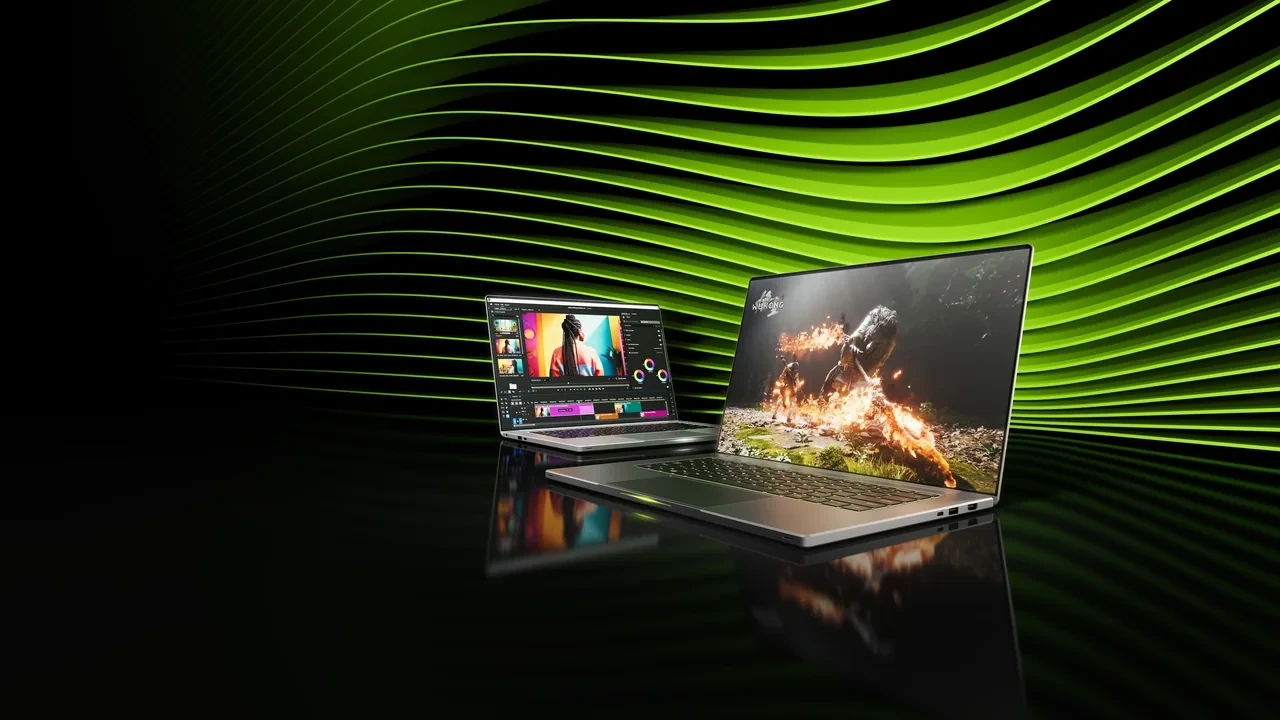
GeForce RTX 5070 Laptop GPU DLSS 5 best settings for development and play
DLSS 5 is scheduled for September 3, 2026 at 21:00 PT as part of the GeForce RTX 50 Series rollout. On the GeForce RTX 5070 Laptop GPU, the best preset is the one that balances image quality, consistent frame time, and end-to-end latency after the chassis reaches a steady temperature. A desktop 5070 setting can throttle in a thin laptop, while an overly conservative silent-mode profile can waste visible image quality.
Do not transfer figures from the desktop RTX 5070, Max-Q variants, the 5070 Ti, or the 5060 class. Mobile power limits alter clocks and memory behavior. The launch data, drivers, and SDK notes also remain gated until the September 3 window, so no pre-launch tuning claim should be presented as a measured result.
Account for the Laptop Chassis
The advertised capability envelope assumes power that some laptop chassis cannot sustain. Set the profile around these constraints:
- Power and thermal ceiling. The GeForce RTX 5070 Laptop GPU operates inside a configurable TGP range that is set by the OEM. Two laptops with the same GPU part number can deliver noticeably different sustained clocks once the chassis thermal solution is saturated, which changes the appropriate ray tracing, frame generation, and DLSS 5 reconstruction settings.
- Memory bandwidth for reconstruction. DLSS 5 leans on the underlying frame to supply motion vectors, depth, and optical-flow signals. On a laptop, lower memory bandwidth means the same internal render target can consume more of the frame budget and leave less headroom for upscaling, so resolution and ray-tracing load have to be tuned together rather than independently.
- Latency expectations. Laptops are often used with high-refresh internal panels or external monitors for competitive play. Latency, not just average FPS, decides whether frame generation feels smoother or simply adds input lag. That result determines the DLSS 5 mode, frame cap, and V-sync state.
A generic recommendation such as “use Quality” can’t account for all three. Treat every title and display path as its own tuning case.
What Is Confirmed at Launch
Only the following launch details are confirmed:
- DLSS 5 is scheduled to launch on September 3, 2026 at 21:00 PT. Use the public driver, SDK, and game patches tied to that release; do not interpolate launch behavior.
- The GeForce RTX 5070 Laptop GPU is listed as an officially supported RTX 50 Series product for DLSS 5. Any settings advice outside that envelope, including desktop transfer rules, is excluded by design.
- Specific frame rate, latency, and image quality numbers for individual games are launch-data gated. No FPS value is quoted because no per-title benchmark is available ahead of the official window. Each signal must be measured after launch.
After release, update the Game Ready Driver through the NVIDIA app and install the game’s DLSS 5 build if it appears on the launch list. Then check that the menu identifies “DLSS 5” rather than a generic upscaler. That quick check catches an older fallback path before profiling begins.
DLSS 5 Modes and Their Laptop Costs
The named modes exchange internal resolution for performance, while separate controls govern frame generation and reconstruction sharpness. The labels follow the DLSS 4 and DLSS 5 lineage, but each studio decides which ones its game exposes.
Upscaling Modes: Performance, Balanced, Quality, Ultra Quality, and DLAA
Render path modes set the internal resolution before reconstruction. Shader cost dominates the desktop trade-off, while memory bandwidth and clock throttling add another constraint on a laptop. Each mode therefore needs to be judged against the 5070 Laptop’s actual chassis.
| Mode | Internal render vs. output | Primary cost on a 5070 Laptop | Where it tends to fit |
|---|---|---|---|
| DLAA | Native resolution, then reconstructed | Highest shader and bandwidth load, no upscaling headroom | Slow-pacing, dense-art, or photographic titles where aliasing on hair and foliage is unacceptable |
| Ultra Quality | ~77% of native per axis | Moderate reduction, image quality close to native on most scenes | Single-player from 30 FPS up to the chosen target, with ray tracing on |
| Quality | ~67% of native per axis | Balanced, the default starting point for most RTX 50 Series laptop builds | Chosen frame-rate target with light to medium ray tracing |
| Balanced | ~58% of native per axis | Larger speedup, ghosting risk on fine UI elements | High-refresh competitive titles, paired with frame generation |
| Performance | ~50% of native per axis | Largest speedup, visible softening in motion | Path tracing, dense volumetric work, or as a thermal relief dial |
NVIDIA publishes these scaling targets for planning, not as measured output. The actual pixel count depends on the panel resolution. A 2560×1600 panel in Quality mode renders roughly 1717×1074 before reconstruction, while a 1920×1080 panel renders about 1287×720 in the same mode. A setting that looks good on a QHD+ panel can therefore appear soft on an FHD panel, and vice versa.
Gate Frame Generation by Base FPS
The NVIDIA DLSS 5 launch and compatibility page positions the release as the next upscaling and frame-generation generation for RTX 50 Series hardware. It extends the existing pipeline with spatial-temporal reconstruction, optical-flow-driven frame generation, and a model adapted to per-game training data. The RTX 50 series entry lists the desktop and laptop family, including this GPU.
Frame generation inserts reconstructed frames between rendered ones. On a 5070 Laptop, the technology doubles apparent frame throughput only when the base frame rate is high enough that the reconstructed frames have clean motion data. Below roughly 40 to 45 base FPS, frame generation produces visible artifacts on fast camera moves because the optical-flow stage has too little new information to work with.
Keep frame generation off during profiling so its reconstruction cost doesn’t hide the subsystem causing latency. Reintroduce it only after the base renderer is understood, then adjust the render mode until the generated frames receive stable motion data.
For players, frame generation pairs naturally with a 120 Hz internal panel or a 120 Hz external monitor. It turns a 60 FPS base render into a smoother apparent experience without requiring the shader cost of native rendering at 120 FPS, which the 5070 Laptop cannot always sustain in demanding scenes.
Cut Ray Tracing Before the Base Rate Collapses
Ray-traced effects scale with internal render resolution, scene complexity, and BVH traversal cost. The GeForce RTX 5070 Laptop GPU shares the RTX 50 Series ray-tracing hardware with its desktop sibling, but the laptop’s TGP envelope means it has to throttle clocks under sustained ray-traced load. The settings pass therefore has to be honest about which effects to enable.
- Reflections. A high-cost setting. On a 5070 Laptop, ray-traced reflections on a 1600p panel with Ultra Quality DLSS 5 typically run close to the thermal limit; Balanced DLSS 5 with medium-quality reflections is usually a better tradeoff.
- Global illumination. A medium-cost setting that interacts with denoiser quality. Path-traced GI on a laptop is rarely a clean win for a 5070; the better choice is often a hybrid setup with screen-space GI plus one or two ray-traced bounces.
- Shadows. The cheapest of the three. Ray-traced shadows at medium quality are usually free enough to enable and give the largest perceptual jump over cascaded shadow maps.
- Ambient occlusion. Often a screen-space effect, but when reimplemented with ray tracing, the cost is real. Keep it on the conservative preset until the base FPS budget is confirmed.
Starting Settings Template
This template assumes a 2560×1600 internal panel at 120 Hz, an external 1440p 165 Hz display over USB-C or Thunderbolt, and a Game Ready Driver that exposes DLSS 5 after September 3, 2026. Every row is a starting point that still needs validation on the actual laptop.
| Use case | Render path mode | Frame generation | Ray tracing | Frame cap | V-sync |
|---|---|---|---|---|---|
| Single-player story at the chosen frame-rate target | Quality | On | Medium (reflections + shadows) | Stable base, display matched to generated output | On with the panel, off with VRR |
| Single-player with path tracing, 45+ FPS target | Performance | On | Path tracing on, denoiser at quality | Stable base, display matched to generated output | On with the panel, off with VRR |
| Competitive, high-refresh base target | Balanced | Off | Off, or shadows only | Base rate locked to the target | Off, with VRR on the external display |
| Indie / 2D or stylized | DLAA or Ultra Quality | Off | Off | Panel refresh | Off |
| Development profiling | Quality | Off | Match the target experience | Uncapped, logged | Off |
The frame cap should establish a stable base for generation rather than chase the display refresh. With generation enabled, the panel sees twice the consistently rendered base through reconstructed frames. A 60 FPS base cap produces a 120 Hz experience on a 120 Hz panel. With VRR, disable V-sync and cap just below the display maximum so the refresh window absorbs small pacing changes. Without VRR, V-sync remains the reliable way to prevent tearing, with its latency cost accepted.
Validate on the Actual Laptop
A template becomes useful only after measurement. The configurable TGP makes each chassis a separate case, so every trade-off needs a clear pass or fail.
Step 1: Confirm the DLSS 5 Pipeline
- Open the NVIDIA app, switch to the Drivers tab, and confirm the Game Ready Driver date is on or after September 3, 2026.
- Launch the target game, open its graphics menu, and confirm the DLSS dropdown lists a “DLSS 5” option rather than only “DLSS” or “DLSS 4”.
- Open the NVIDIA in-game overlay and switch on the performance HUD. The HUD exposes the active frame generation mode, the resolved render resolution, and the GPU utilization. If frame generation is greyed out, the game has not enabled it for the current mode and the settings should be revisited without it.
Step 2: Measure Base Rate and Variance
The average FPS matters less than the 1 percent low and the worst 0.1 percent frame time. A 5070 Laptop that averages 60 FPS with 1 percent lows at 40 feels worse than one that averages 60 FPS with 1 percent lows at 55. Capture the values with the in-game benchmark or a 60-second manual play through a demanding scene, including dense foliage, water reflections, an indoor-outdoor camera transition, and a teleport or fast-travel event.
Step 3: Measure End-to-End Latency
Enable the NVIDIA Reflex overlay in the game, set the mode to “On + Boost”, and read the reported latency. A clean GeForce RTX 5070 Laptop GPU build with frame generation on should show a total latency at or below the equivalent of a single rendered frame at the chosen base FPS. If the number is significantly higher, the base FPS cap is too low and frame generation is working with stale input data.
Step 4: Check for Thermal Limits
Open HWiNFO, MSI Afterburner, or the OEM’s performance utility and read the GPU clock, package temperature, and power draw. A 5070 Laptop pinned at its power limit throughout the benchmark is thermally bound. Lowering DLSS 5 another mode won’t cure the chassis limit. Raise the laptop, switch to a higher-wattage profile, or accept a lower base FPS cap.
Step 5: Verify the Active Display Mode
Check the Windows display settings for the refresh rate. A common silent failure is a 120 Hz panel that is running at 60 Hz because the laptop’s hybrid graphics mode is not engaged or the USB-C to DisplayPort cable is using a reduced bandwidth mode. The settings table assumes the panel is at the refresh it advertises; if it is not, the frame cap column is wrong.
Adapt the Profile by Game Type
The first supported games after September 3, 2026 will include RTX 50 launch partners and older titles updated by patch. Start from the same template, then account for how each genre uses camera motion, latency, and ray tracing.
Open-World Games
Open-world games spend a lot of time in dense scenes where motion vectors change quickly. The Ultra Quality and Quality modes are usually stable, but the Balanced mode can show ghosting on distant trees and grass when the wind system is active. A practical move is to use Quality as the render path, leave frame generation on, and turn wind and foliage density down by one preset if the 1 percent low drops more than 25 percent from the average.
First-Person Shooters
FPS titles reward a clean base FPS more than they reward reconstruction quality. The render path should sit at Balanced, frame generation should be off, and ray tracing should be reduced to shadows only if it is on at all. The cap should match the panel refresh. With frame generation off, there is no reconstruction cushion for dropped frames, so the render path has to be conservative enough that the GPU can hold the cap without throttling.
Cinematic Third-Person Action
This category tends to allow the most aggressive ray tracing because the camera is not whipping around. Quality render path, frame generation on, path tracing on with the denoiser pinned to the highest quality the studio exposes. The cap should sit at the FPS the studio tuned the cutscenes and combat for, typically 30 to 60.
Indie and Stylized Titles
Stylized art usually does not need DLSS 5 to look clean, but the feature can still help on a 5070 Laptop when the title is locked at 60 FPS on the internal panel and the user wants to push to 120. DLAA is the sensible starting render path because the art hides reconstruction artifacts; frame generation is usually unnecessary.
Common RTX 5070 Laptop Settings Mistakes
These errors repeatedly undermine otherwise sensible profiles:
- Running Balanced with frame generation on at a low base FPS. The reconstruction pass works poorly when the base is below the optical-flow threshold, and the result can feel worse than a stable 60 FPS without frame generation.
- Leaving V-sync on while using frame generation. V-sync adds a frame of latency, and frame generation already adds perceived latency through the reconstruction step. Together, the input feels heavy even when the FPS number is high.
- Maxing ray tracing without checking the TGP. The GeForce RTX 5070 Laptop GPU can run a desktop-class ray-tracing scene for the first few seconds before the chassis thermal solution saturates. The settings pass has to look at sustained performance, not the first 10 seconds.
- Using the same render path on a QHD+ internal panel and an FHD external monitor. The two output resolutions have very different reconstruction pressure. Treat the external display as a separate settings profile.
Integration Requirements for Laptop Builds
A useful DLSS 5 integration needs separate controls, representative hardware, display-aware defaults, and enough telemetry to diagnose player reports.
- Expose the render path mode as a separate control from frame generation. Players want to tune base quality and perceived smoothness independently, and shipping a single combined toggle forces them into a compromise the studio picked.
- Test on three laptop thermal envelopes, not one. A 5070 Laptop that runs at 100 W behaves like a different GPU from a 5070 Laptop that runs at 150 W. Pick a thin-and-light representative, a standard 5070 Laptop, and a performance-segment 5070 Laptop for QA coverage.
- Hook the settings UI to the active display. If the user switches from the internal panel to an external monitor, the render path recommendation should change with it, and the game should be able to do that automatically.
- Log the active DLSS 5 mode and the resolved render resolution. Telemetry that records what the user actually selected is the only way to debug a flood of “DLSS looks blurry” reports; without the mode and the panel state, the support team is guessing.
Frequently Asked Questions
When does DLSS 5 actually go live for the GeForce RTX 5070 Laptop GPU?
DLSS 5 is scheduled to launch on September 3, 2026 at 21:00 PT as part of the GeForce RTX 50 Series rollout. Until then, driver, SDK, and game data remain gated. Check NVIDIA’s official compatibility page for the supported-title list and matching Game Ready Driver build.
Is the GeForce RTX 5070 Laptop GPU officially supported for DLSS 5?
Yes. The GeForce RTX 5070 Laptop GPU is listed as an officially supported RTX 50 Series product for DLSS 5. The support is on the GPU side; individual game support depends on the studio shipping a DLSS 5 build of the title, usually through a day-one or post-launch patch.
Which DLSS 5 mode should start a 1600p laptop profile?
Start with Quality on a 2560×1600 internal panel. It gives a clean reconstruction at a moderate performance cost and pairs well with frame generation when the base cap reaches 60 FPS. If the scene is path-traced or unusually dense, drop to Balanced or Performance and keep frame generation on only if the base FPS stays above roughly 40.
Should frame generation be on or off for competitive play?
Off. Competitive play on the GeForce RTX 5070 Laptop GPU is best served by a stable, uncapped base render path at Balanced, with ray tracing reduced to shadows only or disabled. Frame generation adds perceived latency and a small amount of reconstruction noise, both of which work against the input feel a competitive title needs.
Why does my settings template feel smooth for the first minute and then stutter?
Almost always thermal. The GeForce RTX 5070 Laptop GPU is sustaining a TGP near its chassis limit, the clock throttles, and the base FPS drops below the optical-flow threshold for frame generation. The fix is to lower the base FPS cap, raise the laptop, or switch the OEM performance profile from Balanced to a higher-wattage preset. Settings tuning will not overcome a thermal ceiling.
Can I transfer desktop 5070 numbers to a 5070 Laptop?
No. The desktop and laptop parts share a name and a generation but sit in different TGP envelopes, memory configurations, and chassis thermal solutions. A setting that holds a clean 60 FPS on a desktop can throttle on a thin 5070 Laptop, while a conservative desktop setting may leave headroom unused on a thicker laptop. Treat the laptop model as its own GPU for settings purposes.
Do I need to change settings when I switch from the internal panel to an external monitor?
Yes. The internal 1600p panel and a 1440p external monitor are similar in pixel count but the external display usually has a different refresh rate, a different VRR window, and a different connection bandwidth. Treat the two as separate settings profiles. The render path and frame cap that work on the internal panel are usually a starting point, not a final answer, for the external display.
Where can I confirm DLSS 5 is actually running and not falling back to DLSS 4?
The NVIDIA in-game overlay lists the active upscaler, the resolved render resolution, and the frame generation mode. If the overlay shows a DLSS 4 label or a generic “DLSS” label, the game is not on the DLSS 5 build and the settings menu is operating on the previous generation. Updating the game and the Game Ready Driver to the post-September 3, 2026 build is the only fix.
How should a studio QA the GeForce RTX 5070 Laptop GPU before launch?
QA should run the title on at least three thermal envelopes: a thin-and-light chassis, a standard chassis, and a performance-segment chassis. Each chassis needs its own DLSS 5 mode, frame cap, and ray-tracing preset, because the TGP and sustained clock differ. Telemetry should record the active mode, the resolved render resolution, the 1 percent low frame time, and the package temperature so support can reconstruct user reports later.





Leave a Reply